GPT Image 2 prompts that are easier to revise
Write clearer GPT Image 2 prompts, specify exact text, preserve details in reference edits, and revise one visual constraint at a time.
Read as MarkdownUseful GPT Image 2 prompts describe an image you can judge: what must appear, where it belongs, and which details must survive a revision. Start with the visual requirement rather than a string of quality adjectives. Then keep the request settings fixed while you improve the prompt.
The examples below are original starting points, not a benchmark or a promise of identical results. Try them in the GPT Image 2 Playground, inspect the output, and revise the instruction that failed. The API reference lists the separate controls for dimensions, quality, formats, and reference images.
What belongs in a GPT Image 2 prompt?
Write the subject and composition first. If an image needs room for a headline, say where that empty space should be. If a product must be fully visible, specify that before describing its surface finish. A prompt cannot make a useful layout decision on your behalf when the requirement is missing.
For example, "a beautiful product photo, premium, high quality" gives little guidance about the frame. This version gives you concrete things to check:
A single cobalt-blue ceramic mug on a pale gray tabletop.
Show the entire mug, including the handle, in the lower-right half
of the frame. Leave the upper-left half empty for a headline.
Soft daylight from the left, a short shadow, matte ceramic texture.
No lettering, extra props, hands, or visible brand marks.
The empty region is a composition requirement. The light direction describes appearance. The exclusions address specific unwanted objects. Each part can be revised without rewriting the entire scene.
Put pixel dimensions in size, not just in the prose. "A wide banner" explains the intended layout, but size: "1536x1024" specifies the requested canvas. A literal aspect ratio such as "16:9" is not a valid size value in this API.
How do you ask for exact text?
Give the exact wording and identify its location. Keep the amount of text proportionate to the image. A small label with several paragraphs creates a different task from a large two-word headline; describing both as "readable text" hides that difference.
A flat, front-facing poster on an off-white background.
The headline reads exactly "OPEN STUDIO" in two large lines.
Below it, one smaller line reads exactly "Saturday 10–4".
Use dark blue lettering and a small orange circle below the text.
Keep a generous margin on all sides. No other words or numbers.
Review the actual letters, spacing, and punctuation before using the image. Do not assume an attractive layout means the text is correct. For text that must remain editable, consider leaving a blank region and adding the final lettering in your design tool instead. That is a practical production choice, not a model setting.
If the wording is right but the placement is wrong, change the placement instruction. Replacing the whole prompt can discard the part that was already working. The same principle applies to colors and object placement.
How should reference-image edits be described?
State what changes and what stays. A reference edit needs both instructions, especially when the reference contains details you care about. "Make it blue" does not say whether the background, shadows, or printed label must stay the same.
Change only the mug's glaze from red to cobalt blue.
Preserve the mug's shape, handle, camera angle, tabletop,
background, and direction of light. Keep the printed label unchanged.
Do not add objects or alter the crop.
Send the reference through images, using an accessible URL. This abbreviated request shows the public input shape; replace the example address with an image you control:
{
  "model": "gpt-image-2",
  "prompt": "Change only the mug's glaze to cobalt blue. Preserve its shape, label, crop, background, and lighting.",
  "images": [{"image_url": "https://example.com/mug.png"}],
  "size": "1024x1024",
  "quality": "medium"
}
For multiple references, identify their roles in the prompt: the first image supplies the object, the second supplies a color palette, for instance. Avoid asking two references to define conflicting compositions. Check the output for unwanted changes even when the preservation instruction is explicit.
When is a mask useful?
Use a mask when the edit concerns a selected region. In SeedRouter's API, mask is a URL object and requires images. The mask must be a PNG with the same dimensions as the first reference image; its transparent region marks the area to edit. Full file-size and input constraints are in the media-input reference.
A mask guides the edit; it is not a guarantee that every pixel outside the region will be identical. Inspect the boundary, nearby shadows, and any text after generation. If an edit must preserve a precise edge, compare the result at the size where you will use it, rather than judging only a small preview.
The wording still matters. A selected region says where the change belongs, while the prompt explains what should replace it. "Replace the blank label with a pale blue label, preserving the bottle's outline and reflections" is more useful than "fix this."
A revision log that makes comparisons useful
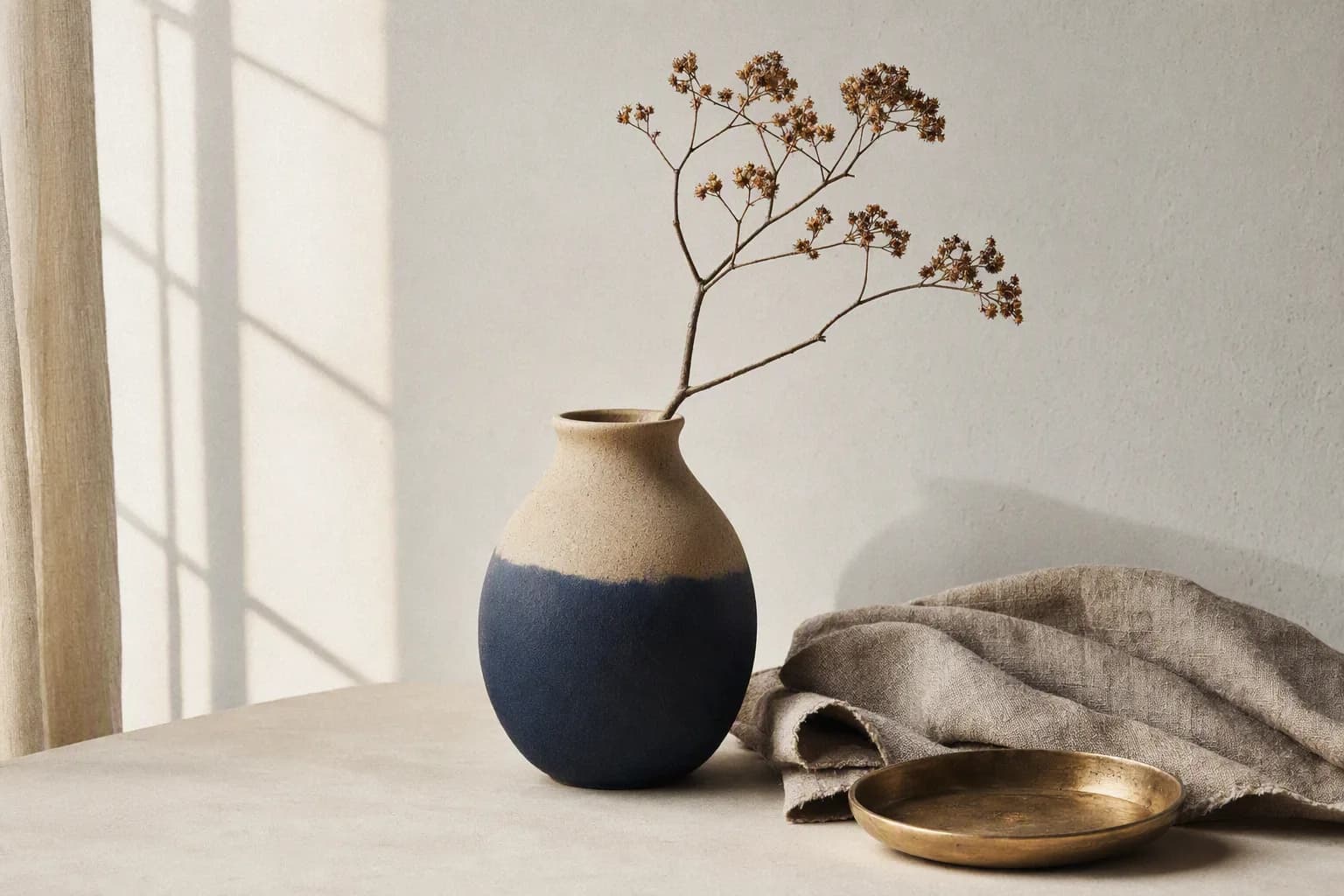
Existing gallery illustration: the window shadow, vase placement, and folded linen are distinct visual details you could record in a review. This image is not a result of the mug or poster prompts above, and it is not a quality-tier comparison.
Keep a short record of each attempt: prompt version, size, quality, reference-image count, and the defect you wanted to fix. Save the task ID with the output. You do not need an elaborate scoring system; a plain note such as "handle cropped" is enough to guide the next change.
Review composition before fine detail. If the subject is in the wrong part of the frame, increasing quality is not a clear test of the layout problem. Fix the instruction, inspect the next output, and only then decide whether a higher-quality render is needed. The pricing guide explains why this also makes cost comparisons easier to interpret.
For a series, test the same prompt structure on a few different subjects. A layout that works for a mug may need different spacing for a tall bottle. Do not treat one successful picture as evidence that every subject will fit the template.
Frequently asked questions
Should I write a very long prompt?
Write enough to define the image and its constraints. The API accepts up to 32,000 characters, but that limit is not a recommendation. Remove repeated or conflicting instructions before adding more detail.
Can I request a transparent background in the prompt alone?
Use background: "transparent" with PNG when you need transparency. Describe the subject and edges in the prompt, but set the output option explicitly. See the transparency notes for the current limitation.
Will the same prompt return the same image?
Do not depend on identical output. This API does not expose a seed control. Keep a reference image when you need to revise a particular result, and check what changed after each edit.
Keep the next revision small
Good GPT Image 2 prompts make the result easier to evaluate. Describe a visible requirement, hold the request settings steady, and revise the failed constraint. For broader model-level guidance, consult OpenAI's image generation guide; use the SeedRouter reference for this API's request and task-response contract.