
Kling Image 4.0 — Image Generation & Reference Editing
Make a still, explore alternatives or plan a connected series. Give Kling Image 4.0 a brief and add photos of the objects or people you want in the frame.
- Text to image
- Reference-guided images
- Image series
Try Kling Image 4.0 before you write any code
Start with a single portrait, or load the Night Garden series to see how Kling Image 4.0 moves from a face to a glasshouse to a single orchid. Check the estimate before generating.
kling-image-4-0From $0.0571432 / image
Generate from a prompt or edit reference images. Submit once; results appear when the task completes.
Describe the subject and its placement. In a Kling Image 4.0 series, write the shots in the order you want to see them.
Each reference adds one input-image charge to the Kling Image 4.0 request.
Kling Image 4.0 accepts up to ten JPEG or PNG references. Both sides must measure at least 300 pixels. Keep the long side within 2.5 times the short side.
One name per line, in upload order. If the first name is lamp, refer to @lamp in the Kling Image 4.0 prompt. A blank line skips that image.
Use Kling Image 4.0 single mode for variants and series for related frames.
Ask Kling Image 4.0 for one to nine independent stills.
Kling Image 4.0 prices each output at its selected resolution.
Choose a frame shape or let Kling Image 4.0 choose with auto.
Output images at the selected resolution plus the reference images in this request.
Try one of these prompts
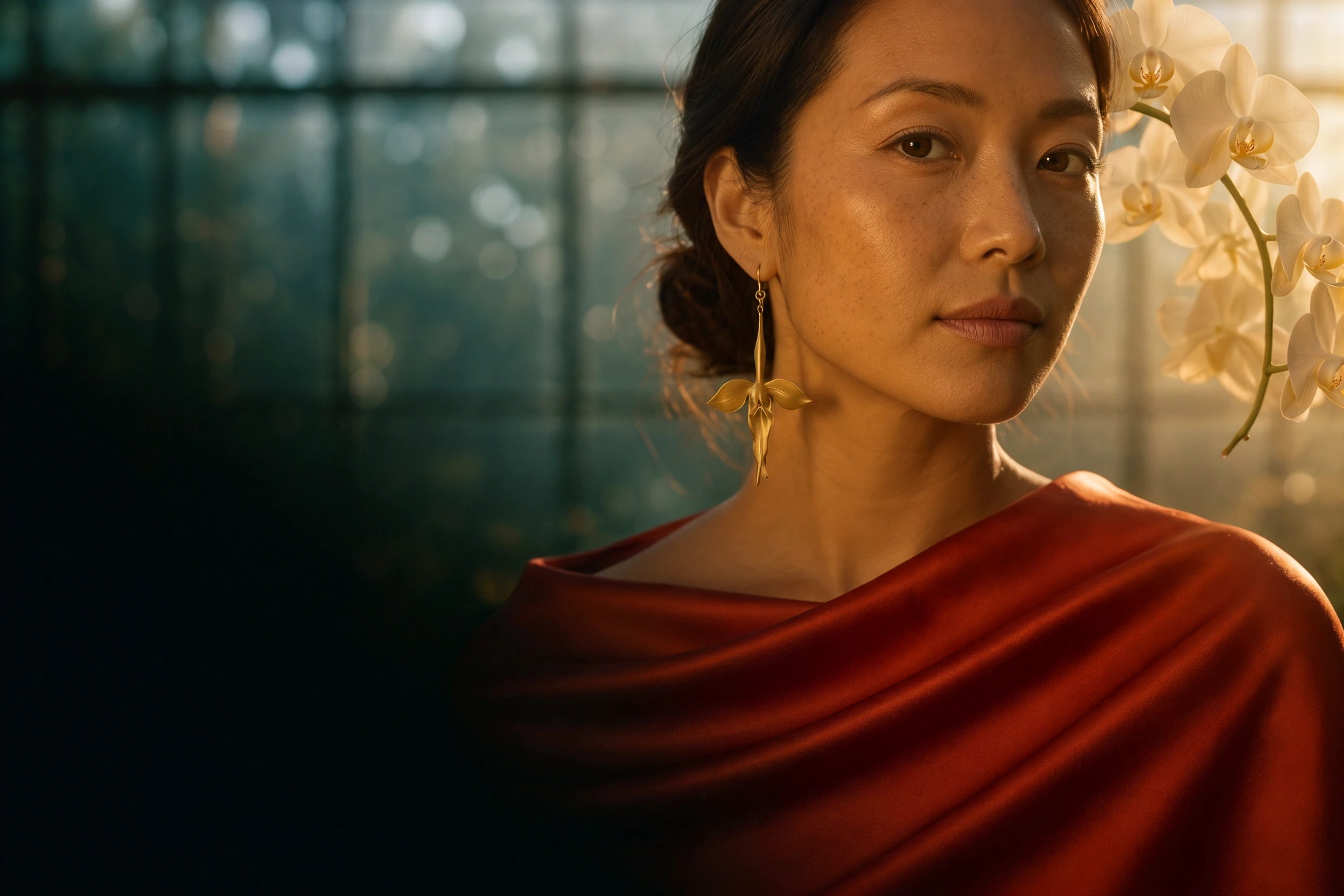
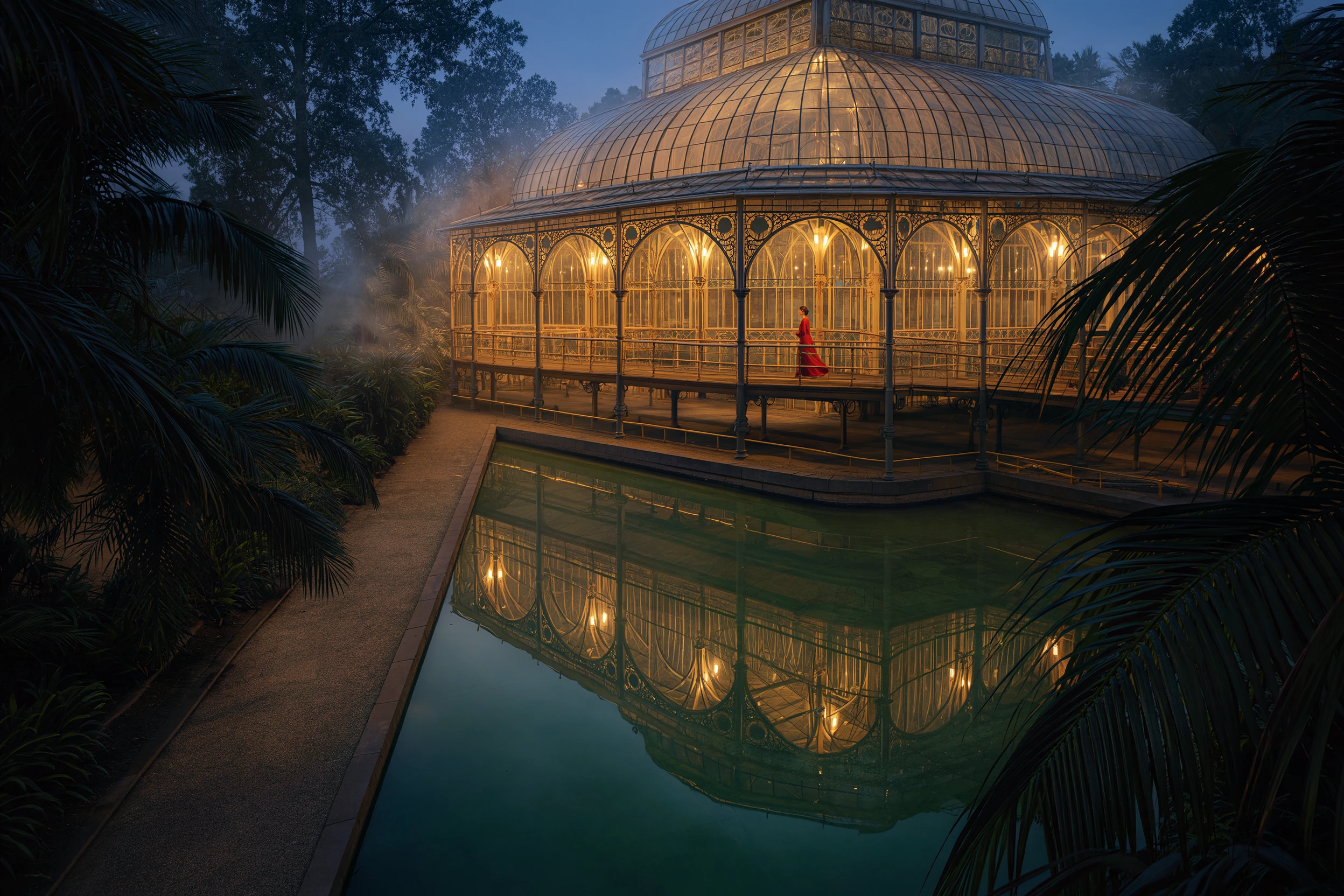

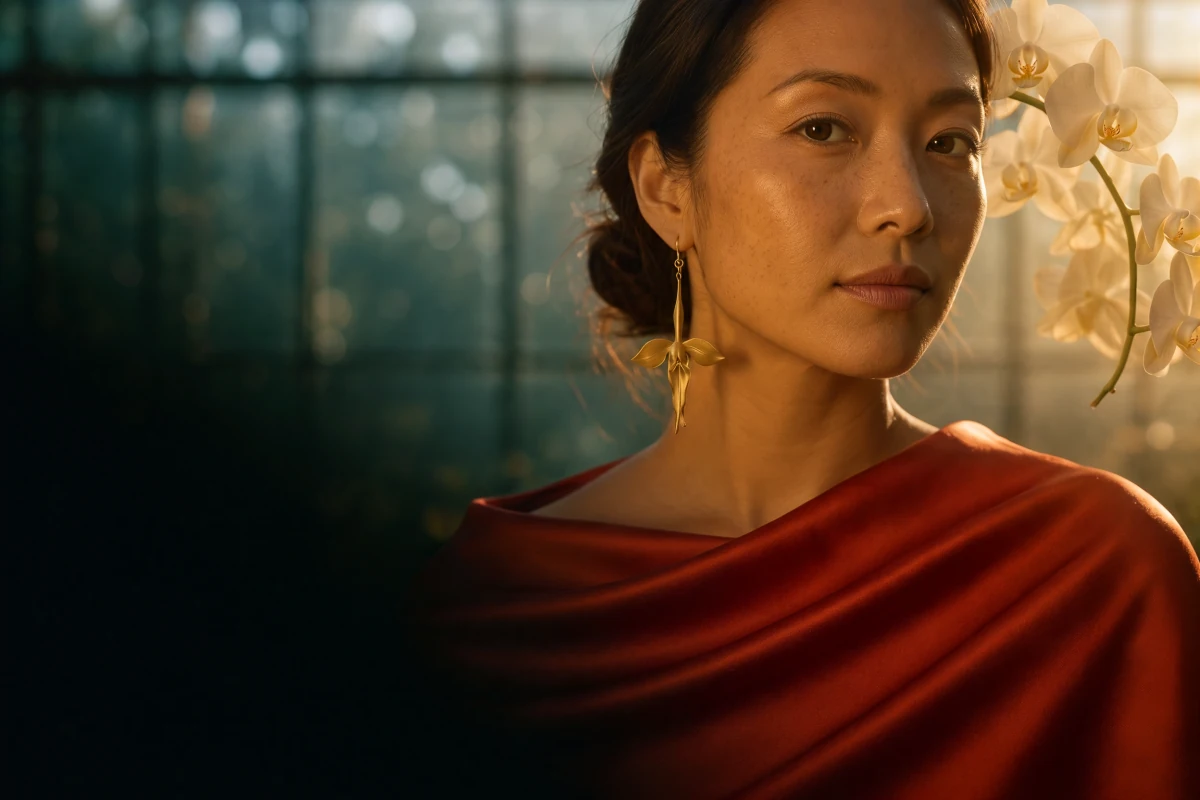
Night Garden · Three images generated together with Kling Image 4.0 through this API.
What Kling Image 4.0 costs
Kling Image 4.0 charges for each image you receive and each reference photo you supply. These examples use the current rates.
- Kling Image 4.0
- $0.0571432/ request
- Kling Image 4.0
- $0.1714296/ request
- Kling Image 4.0
- 349images
A failed request carries no charge.
Kling Image 4.0 rates by resolution
Choose the output resolution first, then add the reference-image rate once for each input photo.
- 2K output image
- $0.0571432Price · 1 image
- 4K output image
- $0.0857144Price · 1 image
- Reference image
- $0.0028568Price · 1 image
Price your own request
Set the resolution, image count and number of reference photos to price a Kling Image 4.0 request before you run it.
Kling Image 4.0 charges the same output rate for an independent still and a frame in a series. Each reference is counted once for the whole request.
Working with Kling Image 4.0
Describe the light, framing and background. Give Kling Image 4.0 a photo for details such as the exact curve of a teapot handle. This leaves room in the prompt for direction: put the spout at the left edge, or leave space above the lid for a headline.
With Kling Image 4.0, independent stills give an art director several takes on one shot. A series gives the frames a relationship. Write a beginning and an ending before asking for the images in between.
The Night Garden series used one prompt and no reference photos. Kling Image 4.0 returned each frame as a separate image, ready for a different placement in the same campaign.
Two ways to use Kling Image 4.0
Use these steps to call Kling Image 4.0 from an application or working session. Both workflows return image URLs.
Call Kling Image 4.0 from your app
Keep reference names alongside your brief so a change in upload order does not change what the prompt describes.
- 1Create a SeedRouter API key for Kling Image 4.0.
- 2Send your prompt and settings to the image generations endpoint.
- 3Save the task ID, poll its status and read every output URL.
Brief a coding agent on Kling Image 4.0
The instructions include the Kling Image 4.0 request shape, approval before generation, and how to retrieve the images.
- 1Copy the instructions into your coding agent.
- 2Give Kling Image 4.0 a brief and optional reference URLs.
- 3Approve the estimated cost, then review the saved outputs.
What Kling Image 4.0 gives you
Choose the inputs and output mode to match the brief. The same Kling Image 4.0 endpoint handles all three workflows.
A still from a written brief
Describe the subject, viewpoint and light. For a poster, tell Kling Image 4.0 where the title will sit so you have room to add the lettering later.
A named reference for each subject
Give each reference photo an ID so you can describe its role in the Kling Image 4.0 prompt. One photo can establish the subject and another the setting.
A connected sequence
Describe each frame in order. The Night Garden brief asked Kling Image 4.0 for a portrait, an architectural view and a jewelry detail, linked by a palette of red silk and warm gold.
When to give Kling Image 4.0 a reference
Product stills for a campaign
Photograph the product against a plain background. Ask Kling Image 4.0 to change the setting and light, then check the silhouette and hardware against the original before approving the image.
Kling Image 4.0 storyboards
For a Kling Image 4.0 series, describe the room and subject once. Follow with a shot list: the opening wide shot, a detail of the object in use, and the final close-up.
Character and wardrobe studies
In Kling Image 4.0, name the character and costume references separately. Assign each name a role in the brief so the clothing from one photograph goes on the person in another.
How to brief Kling Image 4.0
- 01
Set up your API key
Save the key in your application environment. Use the bare model ID kling-image-4-0 when you submit the brief.
- 02
Choose the final crop
For one banner, choose its aspect ratio first and tell Kling Image 4.0 where the headline will sit. For a series, write one sentence per frame and pick the number of images before submitting.
- 03
Attach only the references you need
Use one clear photograph for each object. Give Kling Image 4.0 a second angle if a shape is difficult to see. Each additional reference adds an input charge.
- 04
Review the whole set
Open every image in the completed Kling Image 4.0 task. Check the crop, details and continuity, then save the prompt with the approved asset.
Kling Image 4.0 single versus series
Match the Kling Image 4.0 output mode to the relationship you want between images.
| For this assignment | Choose | What to ask Kling Image 4.0 for |
|---|---|---|
| Different directions for one poster | Single | Ask for several independent alternatives with the same brief. |
| An ordered product reveal | Series | Write a progression from a detail to the full product. |
| One final hero image | Single | Use one output and place the subject for the target crop. |
Kling Image 4.0 input and output limits
Crop a very wide reference
Kling Image 4.0 accepts landscape and portrait references within a 2:5 to 5:2 range. Crop an unusually tall scan or wide panorama around the subject before uploading it.
Plan the number of frames
A Kling Image 4.0 series can contain 2–10 frames. For 5–10 frames, keep the prompt within 20,000 characters, use @name for each reference, and use images of 20 MB or less each.
Using Kling Image 4.0 on SeedRouter
Estimate a Kling Image 4.0 request
See the current Kling Image 4.0 rate for each resolution and reference. Compare a single draft with a multi-frame set while you can still change the brief.
Keep the recipe for the approved shot
Use the Kling Image 4.0 playground JSON view to inspect the settings behind a brief. Copy the model ID into your application, save the task ID, and retain the URLs for the images you choose.
Other image models on SeedRouter
Compare Kling Image 4.0 with other image models available with the same API key.
Create and edit images with GPT Image 2 on SeedRouter. Use text prompts, reference images and transparent backgrounds, with a live playground and usage-based pricing.
View pricingGenerate and edit images with GPT Image 2.5 Flare or Sunburst on SeedRouter. Six quality steps up to max, transparent backgrounds, a live playground and pay-as-you-go pricing.
View pricingCreate and edit images with Nano Banana 2 (Gemini 3.1 Flash Image): 512px to 4K, 14 aspect ratios, up to 14 references. Pay per image or per token.
View pricingNano Banana 2.1, Google's update to Nano Banana 2: create and edit images with sharper text, 1K to 4K, 14 aspect ratios and 14 references, one price per image.
View pricingCreate and edit images with Nano Banana Pro (Gemini 3 Pro Image): 1K to 4K output, built-in thinking, up to 14 references. Pay per image or per token.
View pricingCreate and edit images with Nano Banana 2 Lite (Gemini 3.1 Flash Lite Image), Google's fastest and cheapest image model: 1K output, 14 aspect ratios.
View pricingKling Image 4.0 guides
Request examples, reference-image rules and the response fields you need to use Kling Image 4.0 in an application.
Make a three-image campaign with Kling Image 4.0. Use one prompt for a portrait, a glasshouse and an orchid detail, retrieve every file and check the cost.
See working cURL, Python, Node.js and Go examples. Follow a request from the first prompt to the finished image URLs.
Kling Image 4.0 questions
Can I use Kling Image 4.0 without uploading a photo?
Yes. Describe the subject, composition and light. Give Kling Image 4.0 a reference when a particular feature, such as the cut of a garment or the outline of a chair, would be difficult to specify in words.
How do I tell Kling Image 4.0 which reference I mean?
Name each reference and use @ followed by its name in the prompt. For example, give Kling Image 4.0 a photo called chair and another called room. Ask for @chair beneath the window in @room.
How do I plan a Kling Image 4.0 series?
Write the opening, action and ending in order, then choose the series count. For unrelated alternatives, switch Kling Image 4.0 to single mode and increase the number of variations.
Can Kling Image 4.0 deliver a vertical 4K image?
Yes. In Kling Image 4.0, output resolution and aspect ratio are separate choices. For a mobile screen, choose 9:16, select 4K and leave room in the composition for any controls or captions.
How much does a Kling Image 4.0 reference cost?
Find the current input rate in the Kling Image 4.0 pricing section. Each reference is charged once for the request, even when you ask for several frames. Use the playground estimate to compare two versions of a brief.
Where does Kling Image 4.0 return the images?
In the Kling Image 4.0 playground, open the results pane. With the API, poll the task ID and read output.data when the status is completed. Keep that ID if a status check is interrupted.
Make a still with Kling Image 4.0
Bring a brief or a reference photograph and choose the frame for your first Kling Image 4.0 still.