How to make a Raindance AI video with two characters
Learn how to make a Raindance AI video with two images, a motion reference and Seedance. Assign the roles, check live pricing and finish the soundtrack.
Read as MarkdownTo make a Raindance AI video, choose one image for each of the two characters, keep the supplied motion reference, and generate the scene with Seedance. Keep generated audio on and include the audio reference. The model generates picture and sound together; preview the result, check the mouth movements and download the MP4.
Open the Raindance AI video generator to follow the steps below. The images supply the cast; the motion clip supplies the performance. Check the result before sharing: recognizable faces, accurate gestures and matching mouth movements are not guaranteed.
Watch the Raindance trend reference
This 29-second reference clip recasts the waterfront performance with Shrek and Lord Farquaad. Play it with sound to see the effect. It retains its original watermark and is a trend reference, not a SeedRouter generation.
The clip above is for viewing the trend. Generation uses the original 13.13-second outline motion reference. The example below shows what it produced from our two sample portraits.
See the generated example
This earlier example uses the two original character portraits below and Seedance 2.5 with an outline motion reference. The downloaded file is 1280 × 720, lasts about 13 seconds and includes a soundtrack added after generation. It does not demonstrate the current audio-reference workflow; compare it critically rather than treating its cuts or lip sync as an exact match.
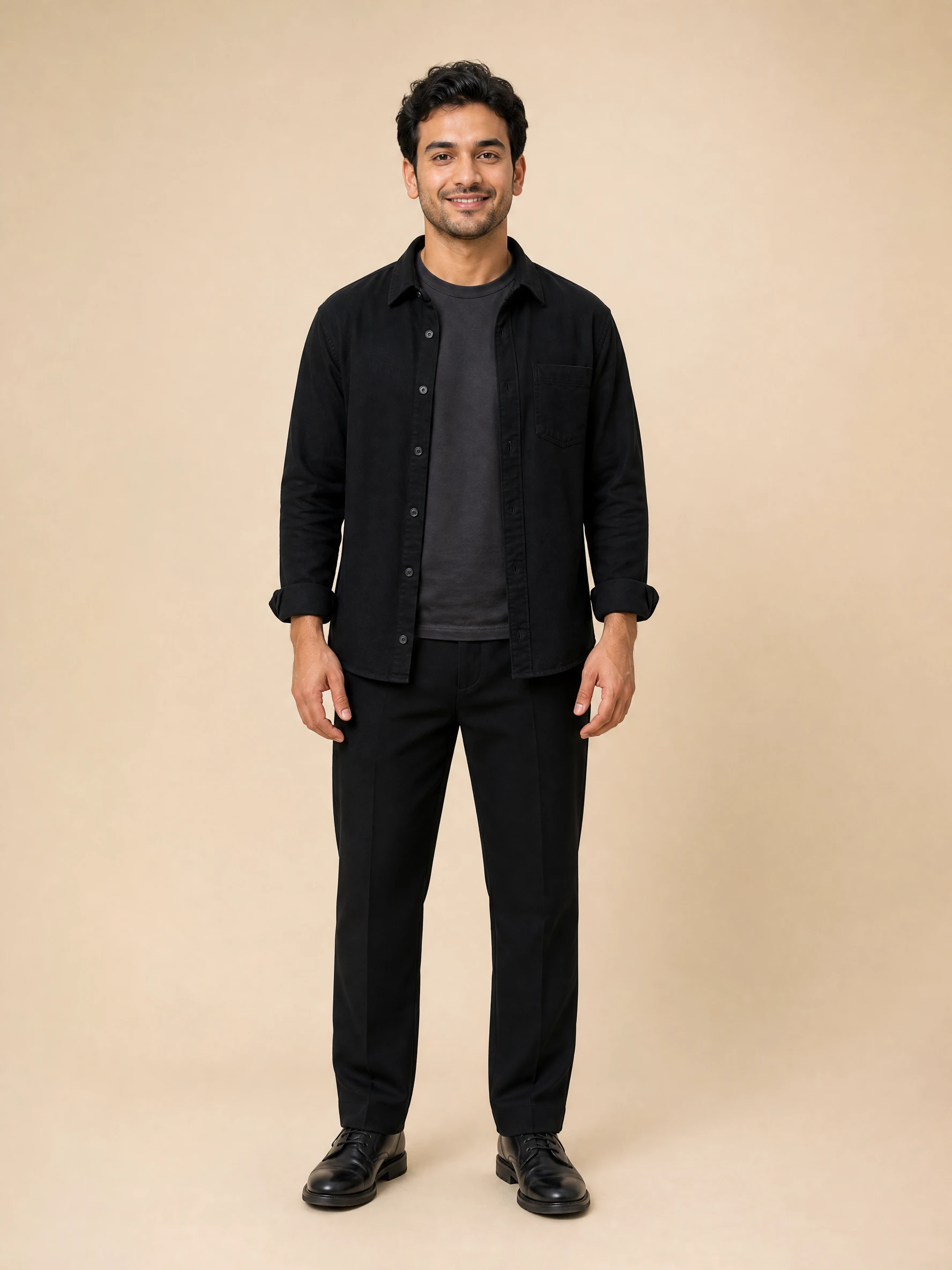
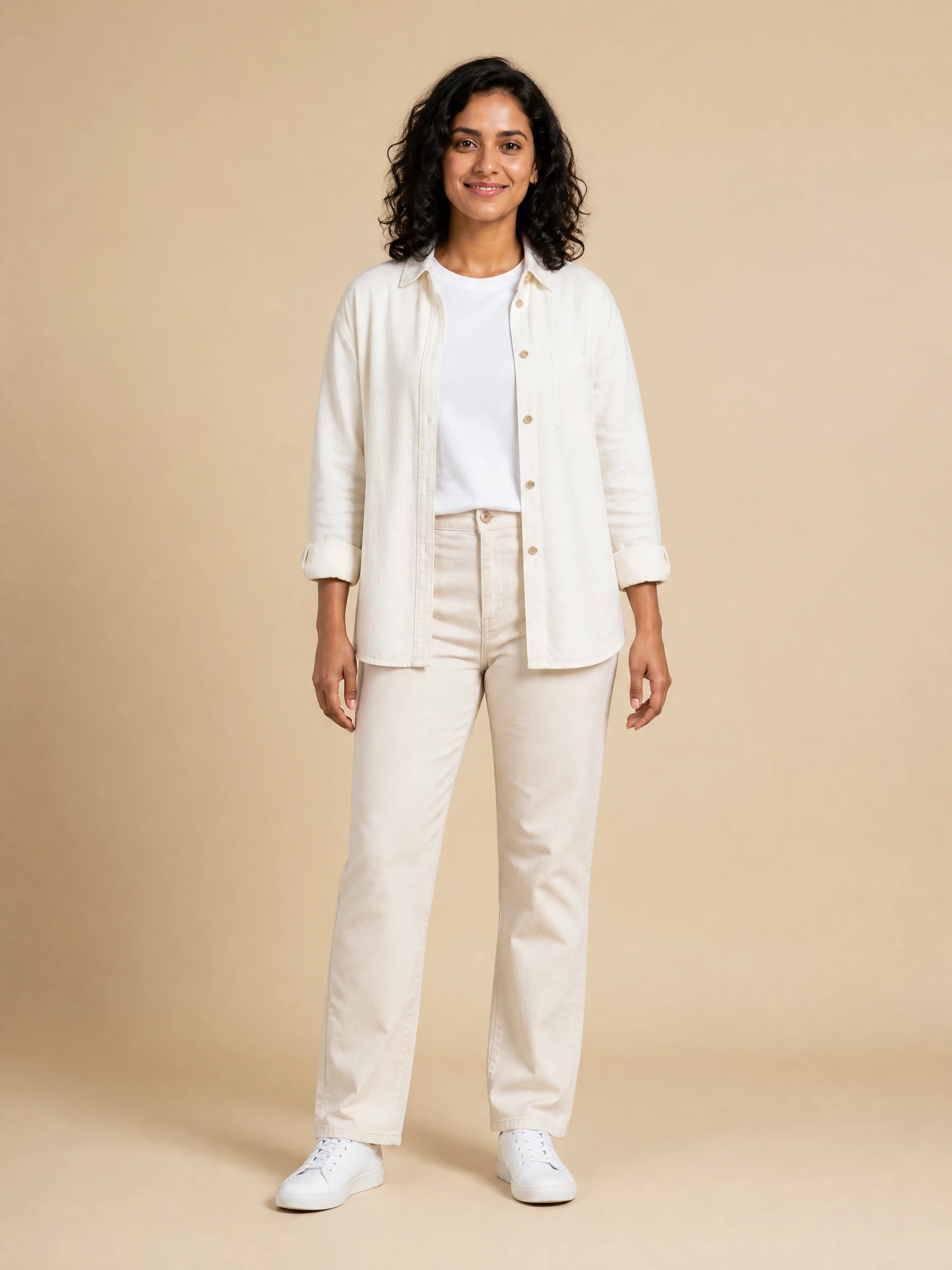
Watch how the scene moves between the waterfront shot and the singing close-ups. This is one generated result; a different cast or prompt can change the outcome.
What is the Raindance AI trend?
The Raindance AI trend recasts a scene associated with “Raindance” by Dave featuring Tems. The original recording is available on Dave’s official YouTube channel. [1] In the motion reference used for this workflow, one performer sits by the water in the opening shot while the other approaches and performs. Later shots include closer framing of the singing performer. [2]
Assign the characters by role: opening seated performer and singing performer. Their positions change as the viewpoint changes.
1. Choose the two Raindance AI character images
Prepare one clear image per character. Look for a visible face, recognizable hair and an outfit you want to keep in the result. A crowded group photo makes the intended identity harder to specify. Use images you have permission to use; original fictional characters are also an option.
Put the character for the opening seated role in Image 1 and the singing character in Image 2. You do not need a photograph of the two together. The separate inputs let you choose the cast independently.
| Input | Its job in the video |
|---|---|
| Image 1 | Appearance of the performer seated in the opening shot |
| Image 2 | Appearance of the singing performer |
| Video reference | Movement, timing, framing and shot changes |
| Audio reference | Vocals and musical timing, supplied separately |
| Prompt | Connect each image to its role and describe the intended look |
Audio is supplied as a separate reference_audio item, with generate_audio: true. These images are character references, not first and last frames. Keep the reference-image mode used by the scene; frame inputs and the image-plus-video reference workflow have different constraints. [3][4]
2. Preview the motion and check the prompt
Play the motion reference before generating. Follow the seated character, then watch where the singing character appears and how the camera changes. The reference contains shot changes, so an instruction such as “one continuous shot” would fight the movement you are trying to reproduce.
The preset uses the original black-and-white outline motion reference. It guides movement, composition and camera cuts; the trend example above is only for viewing the effect. The audio reference is supplied separately to guide vocals and musical timing. Tell Seedance to take appearance from your character images, without copying the outline style. [2]
A short prompt for those roles is:
@Image 1 defines the seated performer. @Image 2 defines the singing performer. Keep each character's appearance and clothing consistent with their own image.

Follow @Video 1 for the shot sequence, cut timing, camera angles and gestures. Do not merge shots or add a return to the seated performer during the singing close-ups.

@Audio 1 guides vocals and musical timing. Synchronize the singing performer's visible mouth shapes with the vocals. Keep the visual style of the character images without copying the reference video's outline style.
Treat this as an instruction to the model, not a promise of exact motion transfer. The Seedance prompt guide explains how to bind images and videos when you want to refine it.
Change one thing at a time after your first attempt, such as the cast or visual style, to see what caused a difference.
3. Choose a model and check the live cost
The preset starts with Seedance 2.5, 13 seconds, 720p and 16:9. You can switch to Seedance 2.0, Fast or Mini; the controls and estimate update for the selected model. These are scene settings, not universal Seedance defaults. [3][4]
Check the estimate after changing any input. A motion-reference request includes the reference video as well as the generated video in its billing calculation. Increasing the output length or using a longer reference can therefore change the cost even when the character images stay the same.
The Raindance AI pricing section uses current model rates. It is a better guide to your request than a dollar figure copied from an older tutorial. You pay from your SeedRouter balance, with no separate Raindance subscription; credits never expire, and failed requests are not charged.
Use a lower resolution to review the composition if cost matters. Another successful generation is another paid request, so inspect the result before retrying.
4. Generate picture and sound together
Keep generated audio on and use the supplied audio reference alongside the video reference. The model generates the audiovisual result in one task, and the tool returns that video directly. There is no automatic music overlay after generation. [3][4]
Watch it from beginning to end. Count the major shots and compare the cut timing with the reference. Check the opening role assignment, the singing close-ups and the hands during gestures. A convincing opening frame does not tell you whether identities or timing hold through later shots.
Then listen while watching the singing performer's mouth. The audio reference guides generation; it does not guarantee a byte-for-byte copy of the track, exact words or perfect lip sync. Replacing the generated sound afterward can create a new mismatch even if the original output was synchronized.
If the result changes too many shots, simplify conflicting prompt instructions and compare the result with the outline template. Review the audio timing separately. For an edit that must preserve an existing video's structure, Seedance 2.5 also exposes a dedicated video-edit mode with its own duration and aspect-ratio requirements. Do not apply those settings to Mini. [4]
What should you check when the result looks wrong?
| Problem | What to review before another generation |
|---|---|
| The cast is reversed | Match Image 1 to the opening seated role and Image 2 to the singer. |
| A face or outfit changes after a cut | Use a clearer character image and remove conflicting appearance instructions. |
| The output looks like a sketch | Keep the instruction that images provide appearance and the video provides movement. |
| The camera stops changing | Remove instructions that demand a fixed camera or a single shot. |
| A reference is rejected | Read the error and check the selected model’s media requirements. |
| The download has no music | Check that generated audio is on and the audio reference is loaded; inspect the actual downloaded file. |
Common questions
Is Raindance AI free?
Previewing the scene is free. Generating a video uses your SeedRouter balance, and the estimate appears before you submit. The tool does not offer unlimited free rendering.
Is Raindance an AI song?
“Raindance AI” in this tutorial refers to the recreated video scene. The track associated with the trend is “Raindance” by Dave featuring Tems. The model generates your audiovisual result using the supplied references. [1]
How do I make a Raindance AI meme?
Choose two characters whose pairing makes the joke, assign them to the seated and singing roles, and review the result for recognizable expressions and gestures. Generate with the audio reference; add captions in your editor if needed. The tool supplies the video workflow; the casting and final edit supply the joke.
Make your Raindance video
Start with the Raindance AI tool, assign the two roles and review the motion reference before generating. Keep the first version simple, inspect every shot, then preview and download the finished video with sound.
References
- Santan Dave: Dave — Raindance (ft. Tems) — official artist video and track credit.
- Raindance outline motion reference, supplied with Kapwing’s Raindance tutorial — the original 13.13-second outline used for generation.
- SeedRouter: Seedance 2.0 API reference — supported reference modes and model settings.
- SeedRouter: Seedance 2.5 API reference — reference inputs and model-specific constraints.